
 Posted by
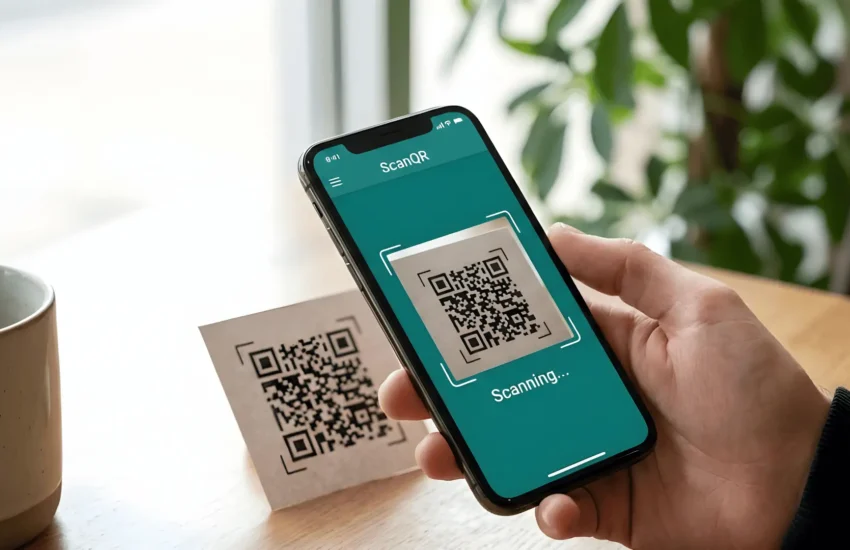
 You can scan a QR code in three simple and easy ways, depending on what device or method works best for you:
- Using Online Scanner
Perfect when you don’t want to install an app, or you’re using a laptop/PC. - Using a QR Scanner App
Best for fast scanning, gallery scanning, batch scanning, and additional features. - Using Google Lens
Useful if you want a built-in option on most Android phones.
Video tutorial
If you prefer written instructions, then continue reading.
How to Scan a QR Code Online
First, if you don’t want to install an app, you can scan a QR code directly from your browser. ScanQR.org works on mobile, laptop, and PC, and it’s one of the easiest ways to scan a QR code online.
Scan a QR Code from an Image
If you want to scan a qr code from an image, you can simply upload the image or screenshot to online image qr scanner. The steps to scan them are given below.
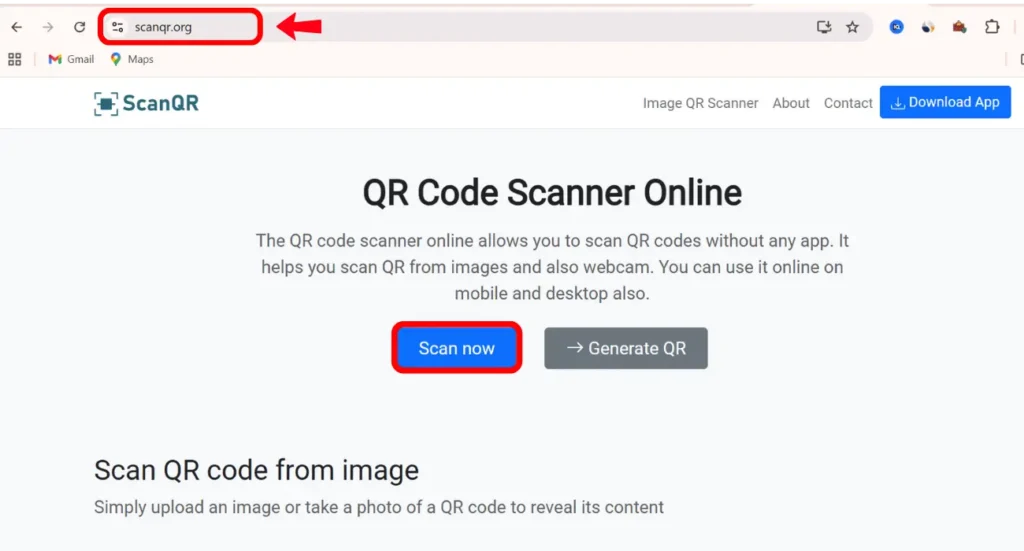
Step 1. Open the ScanQR.org
Go to scanqr.org on your phone or computer.
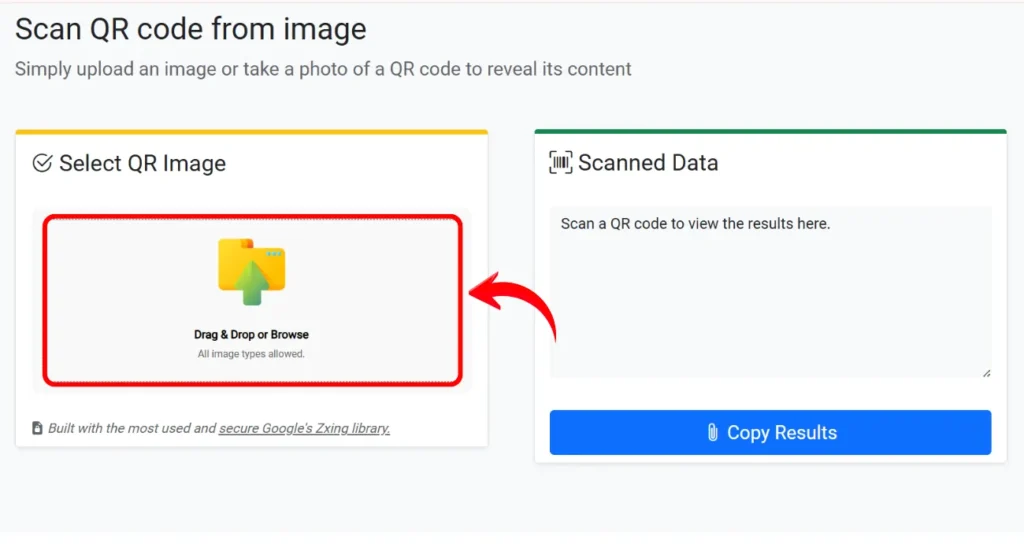
Step 2. Select QR Image
If your QR code is in a photo or screenshot, click select QR image. Choose the image from your gallery or drag and drop it. ScanQR.org will read the QR code instantly.
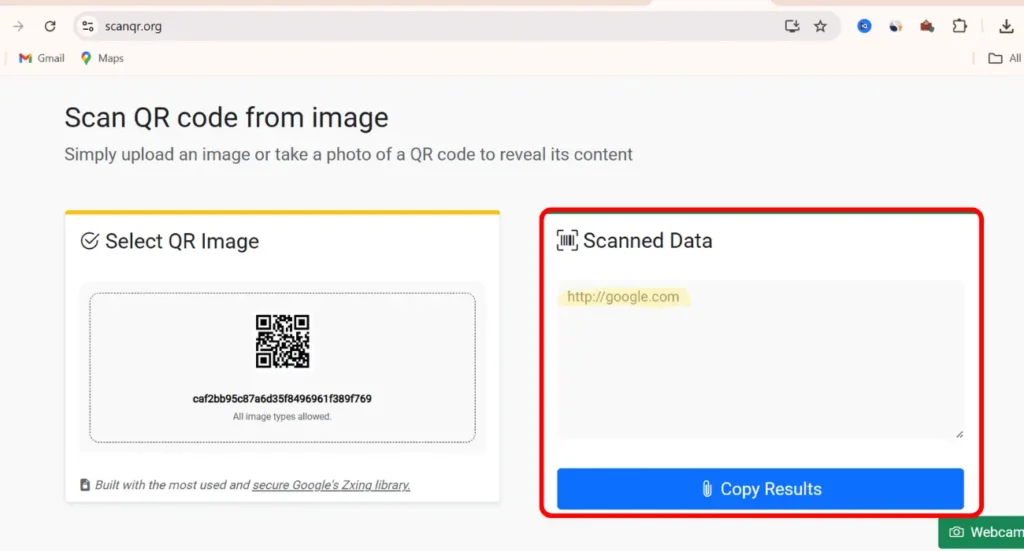
Step 3. View your result
When the QR code is scanned, the result shows up right away in the “Scanned Data” card. So, you can simply copy or open the URL.
Scan QR Using Your Webcam
To scan a qr code using webcam you can use the online qr camera scanner tool. It allows you to use your webcam to scan any qr code.
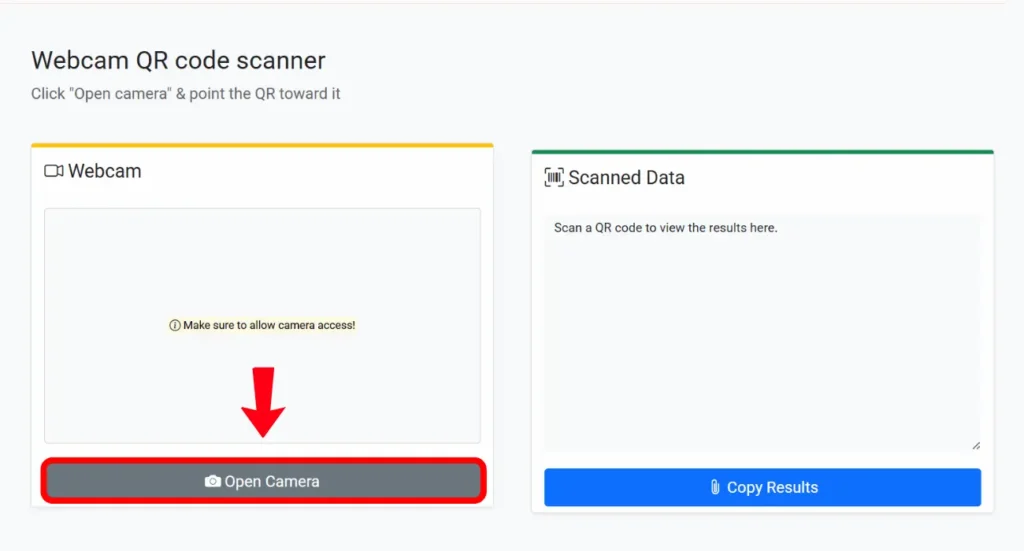
Step 1. Open camera
First, Click the “Open Camera” button.
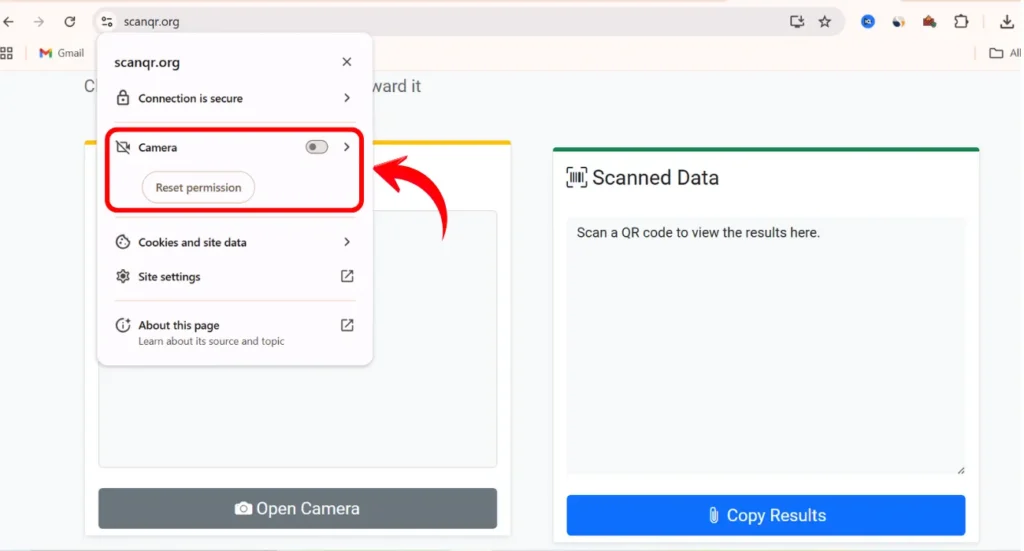
Step 2. Allow camera access
Next, you’ll see a camera permission pop-up. Tap Allow so the website can scan the QR code.
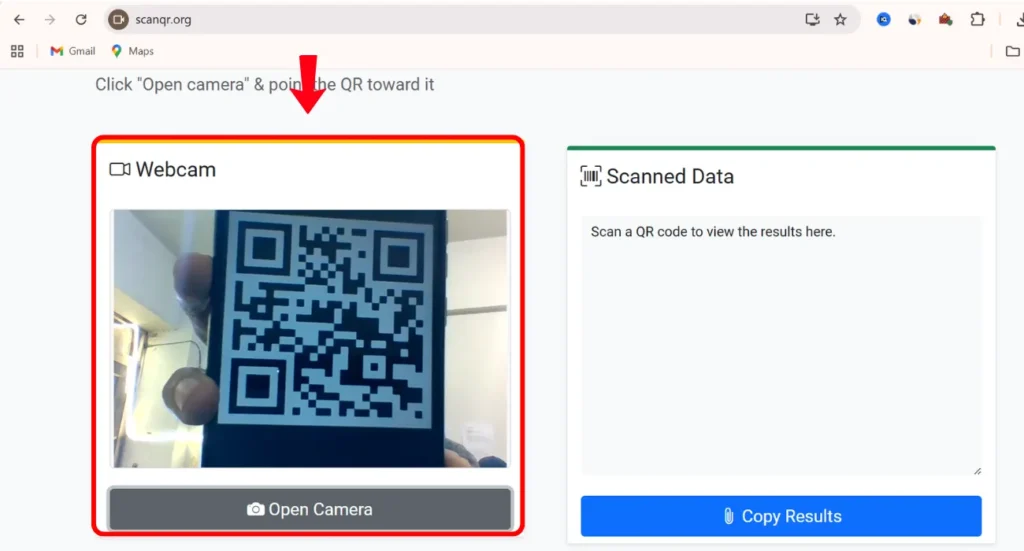
Step 3. Scan the QR code
Place the QR code inside the camera frame. The qr reader detects it automatically within seconds.
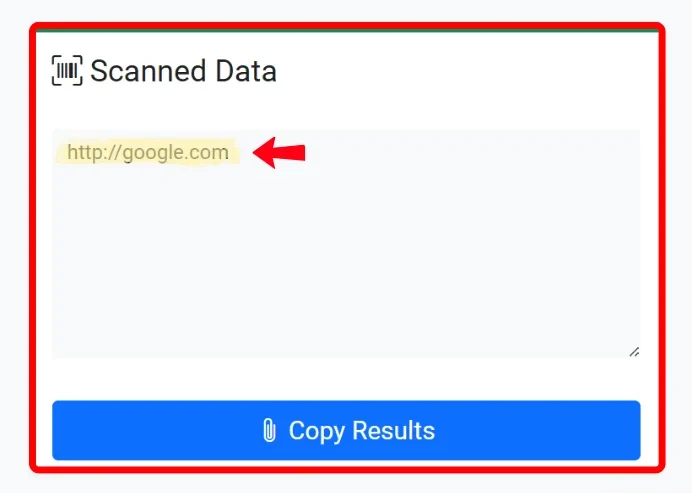
Step 4. View your result
The result shows up instantly, and you can open it or copy it.
How to Scan a QR Code Using the ScanQR App
If you don’t want to use online tool, you can just use the ScanQR app on your phone. It’s easy to use and gives instant results.
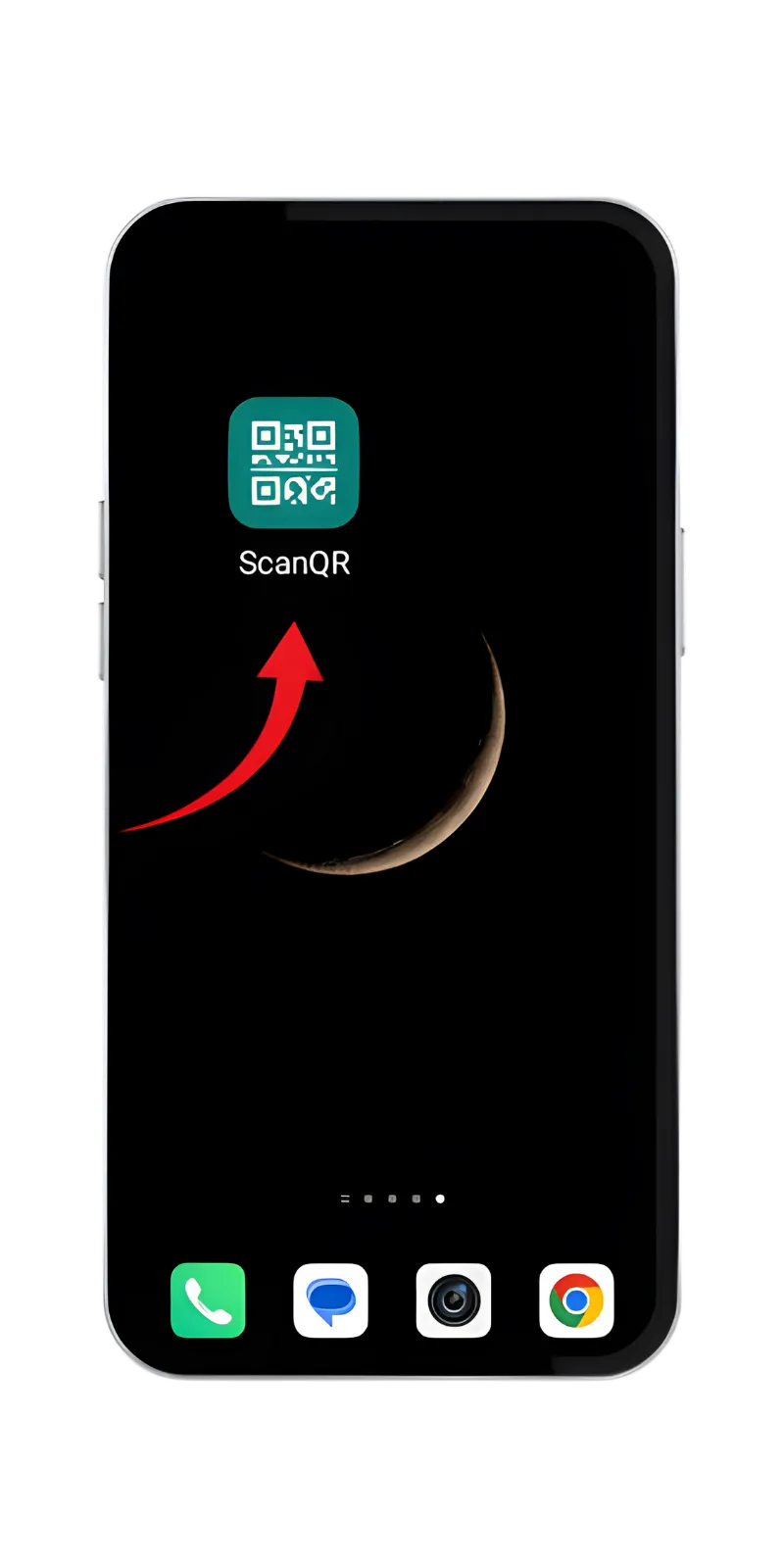
Step 1. Open the ScanQR app
Open the Scanqr app on your Android mobile.
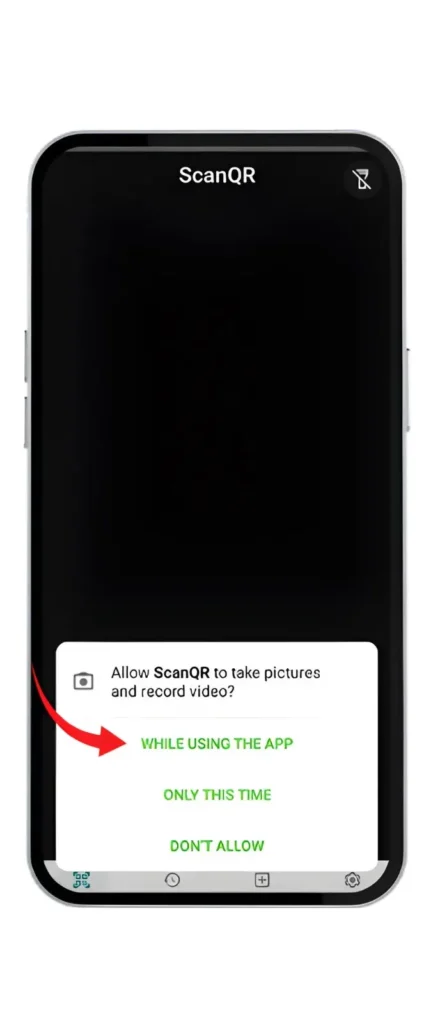
Step 2. Allow camera access
The first time you use it, the app will ask to use your camera. Tap Allow so it can scan QR codes.
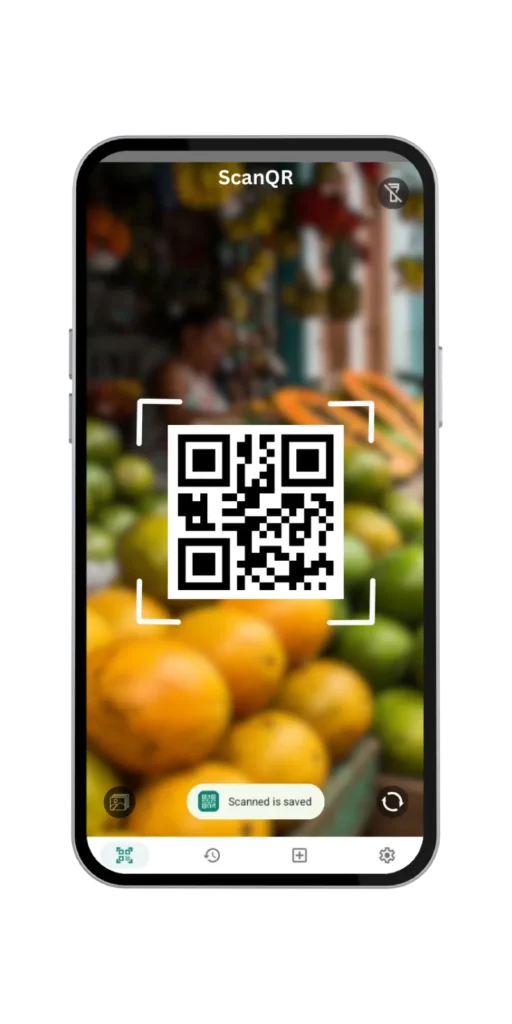
Step 3. Scan QR code
Point your camera at the QR code and keep it steady. The app will scan it automatically within a second.
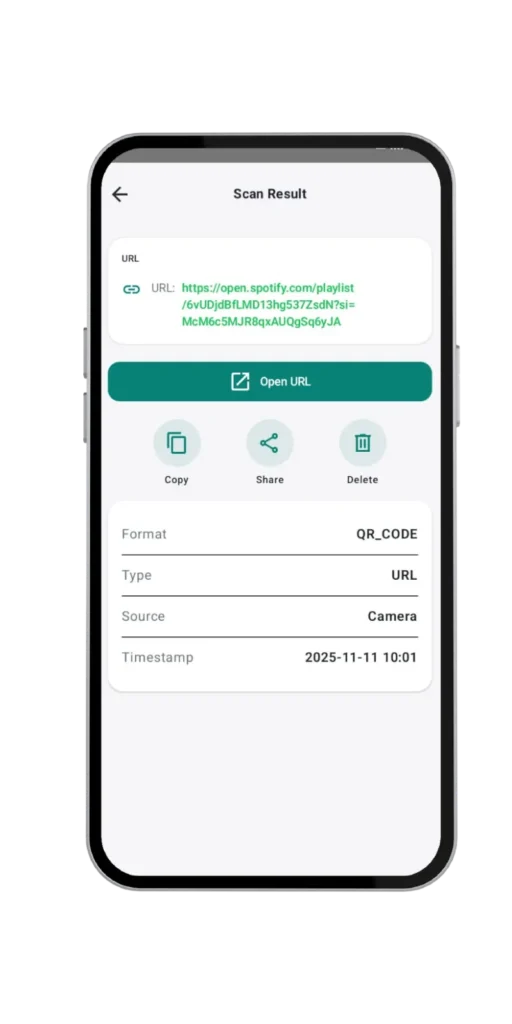
Step 4. See your result
Once the scan is complete, the result appears instantly. You can open it, copy it, and share it.
Scan from the gallery (Optional)
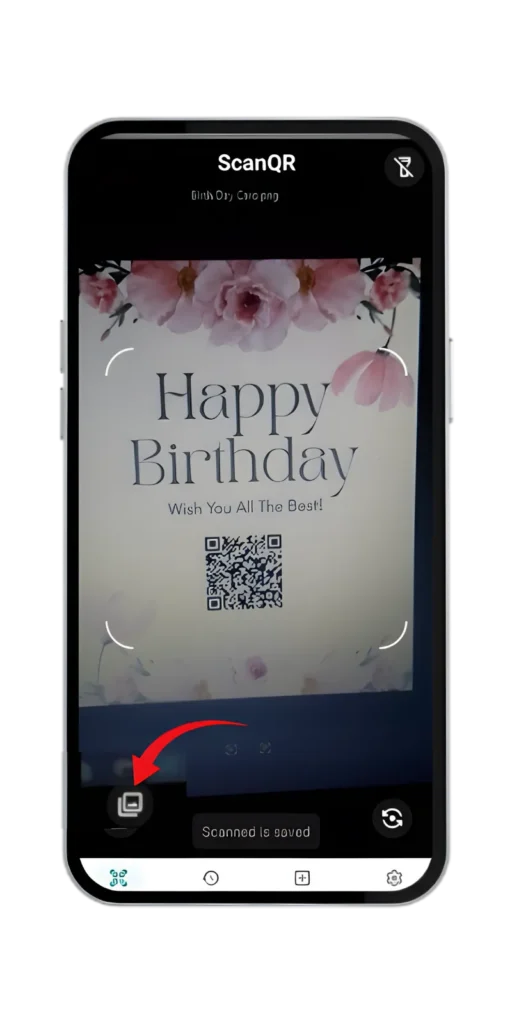
Next, if the QR code is in a screenshot or photo, open the ScanQR app and use the Gallery Scan option. Choose the image, and the app will automatically detect the QR code.
How to Scan a QR Code Using Google Lens
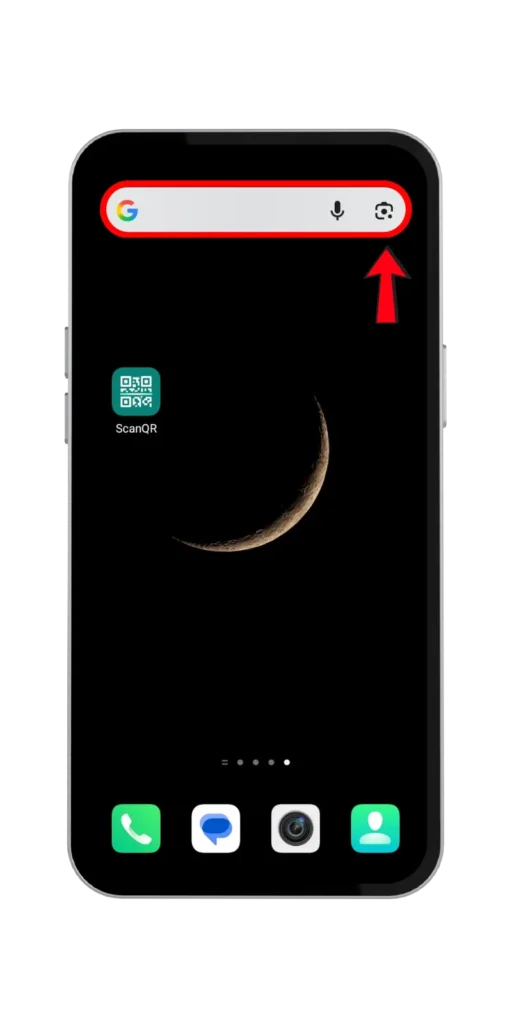
If you don’t want to use a website or install an app, Google Lens is an easy built-in option available on most Android phones. It scans QR codes straight from your camera.
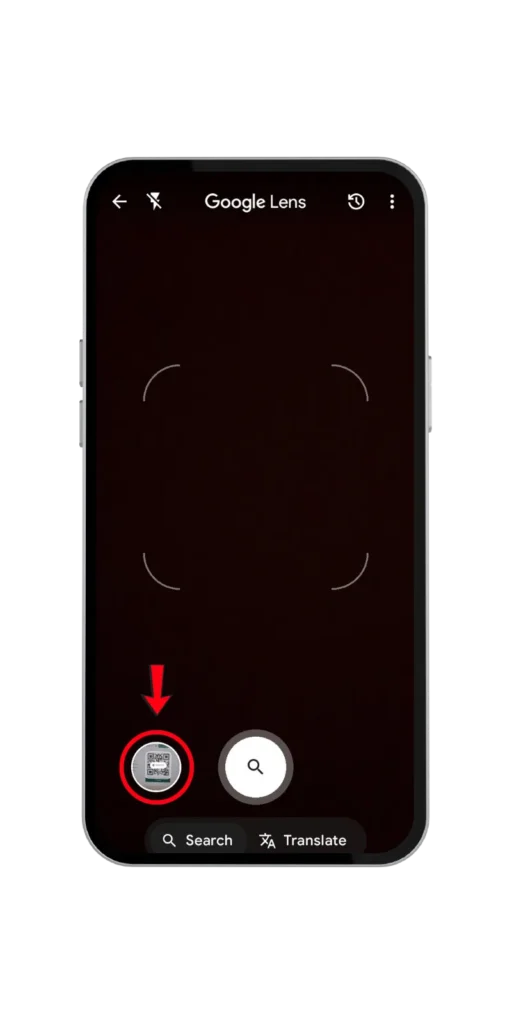
Step 1. Open your camera or Google Lens.
First, if you’re using an iPhone, just open the Camera. On Android, open Google Lens to scan the QR code.
Step 2. Point your camera at the QR code
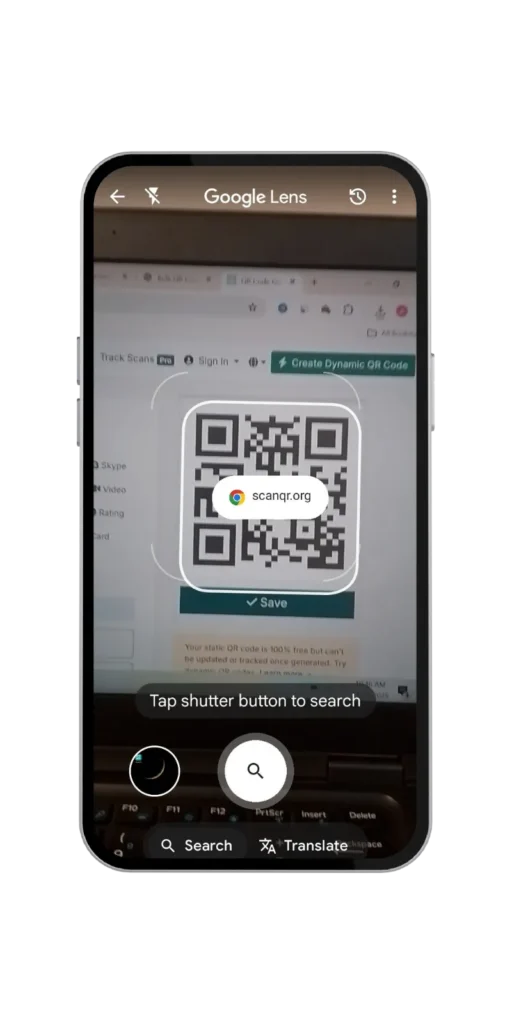
Hold your phone so that the QR code is clearly visible within the frame. Lens will detect it automatically.
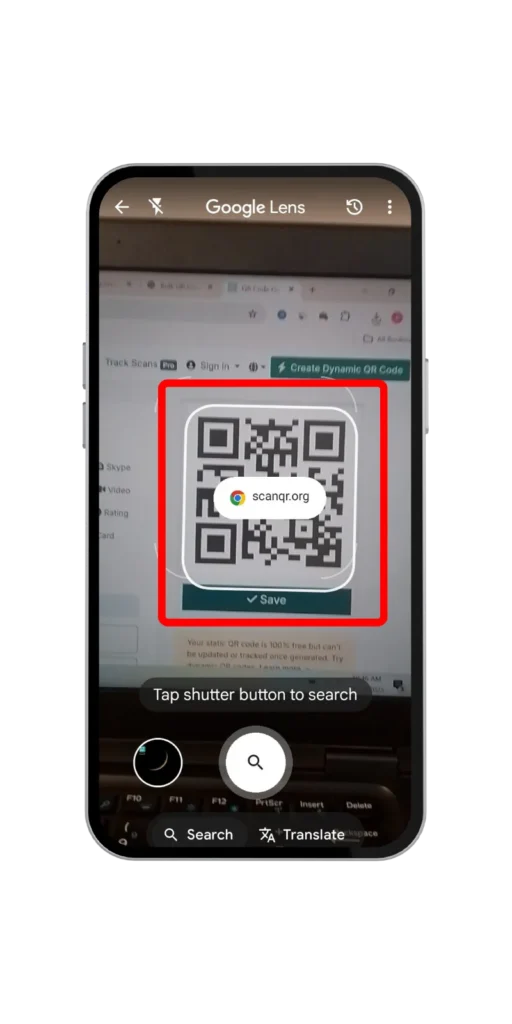
Step 3. Result after scanning
A result will appear on the screen. Just tap it to open, copy, or share.
Scan your photos (Optional)
Open Google Lens, tap Photos, and select your image — the QR code will be scanned automatically.
That’s it! Now you know how to scan any QR code using three different methods, and exactly what steps are required for each one. I hope this tutorial has helped you. Please share it with your friends too!